
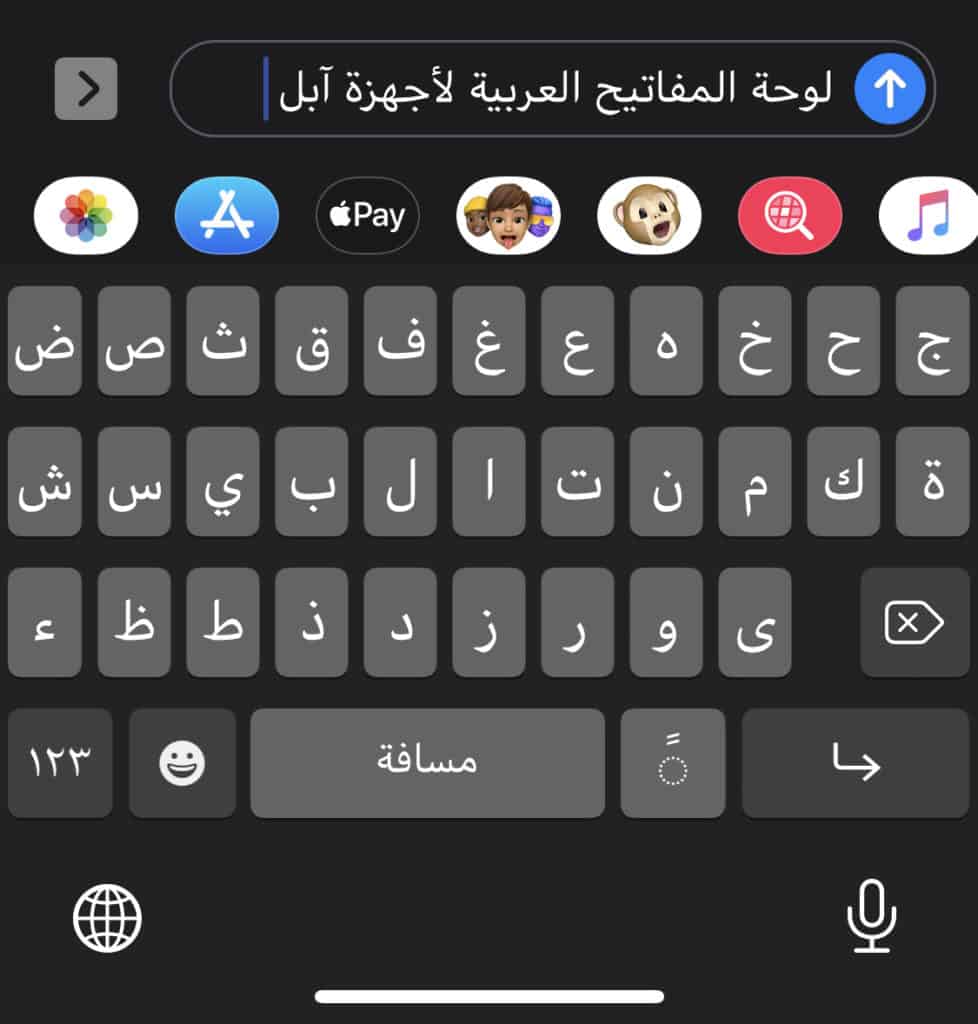
This comprehensive tutorial uses detailed screenshots to show you exactly how to activate the Arabic keyboard on your iPhone. You will learn how to use the keyboard with tashkeel (vocalizations) and how to seamlessly switch between your English and Arabic keyboards without interruption.
We will also explore alternative Arabic keyboard solutions for your other devices to ensure you are fully equipped for any situation. Whether you are messaging friends or drafting professional emails, having the right tools is essential for effective communication.
I will demonstrate how this setup can significantly help you improve your Arabic skills, if language acquisition is your primary goal. Consistent practice is key to fluency, and digital tools make this easier than ever.
Any serious learner of Arabic should seize every opportunity to practice reading and writing. When we think of writing, we (the old school) automatically think of pen and paper. However, in the real and professional worlds, we use keyboards to showcase our writing skills daily.
One very easy way to practice correct writing and spelling is by using your phone. If you are looking for more ways to practice, consider using resources to [[LINK:learn-arabic-online]]practice Arabic online[[/LINK]].
As a native Arabic speaker who struggled for decades with finding the right Arabic keyboard and dealing with formatting issues, I encountered my best Arabic typing experience when I started using the iPhone. The interface is intuitive and user-friendly.
If you are a student of Arabic and use an Apple product, consider yourself lucky. Let’s get your device ready for Arabic input.
Table of Contents
1. Add Arabic keyboard to the iPhone and iPad:
Below are easy-to-follow illustrated steps to get you started on your journey. These settings are native to iOS, so no third-party apps are required.
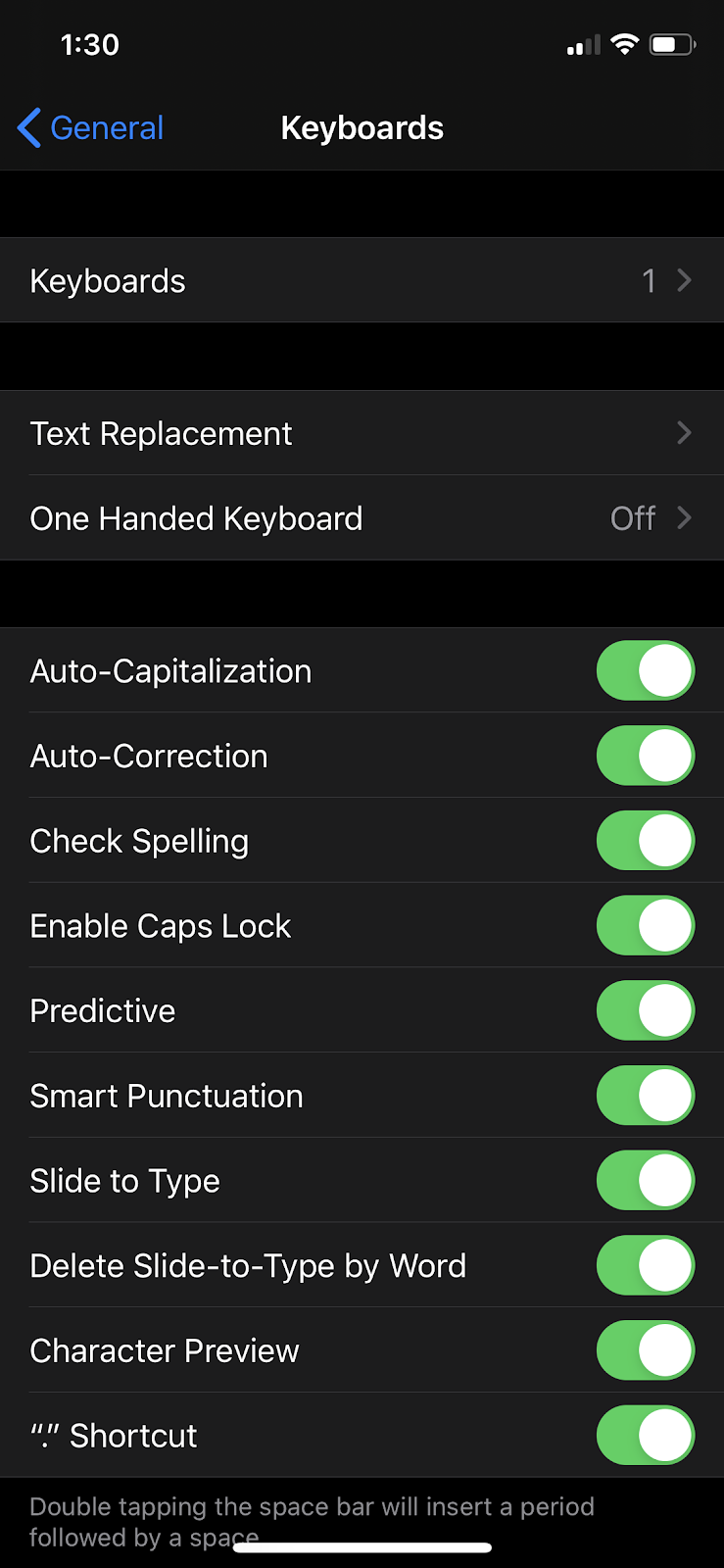
- Go to Settings, then select General;
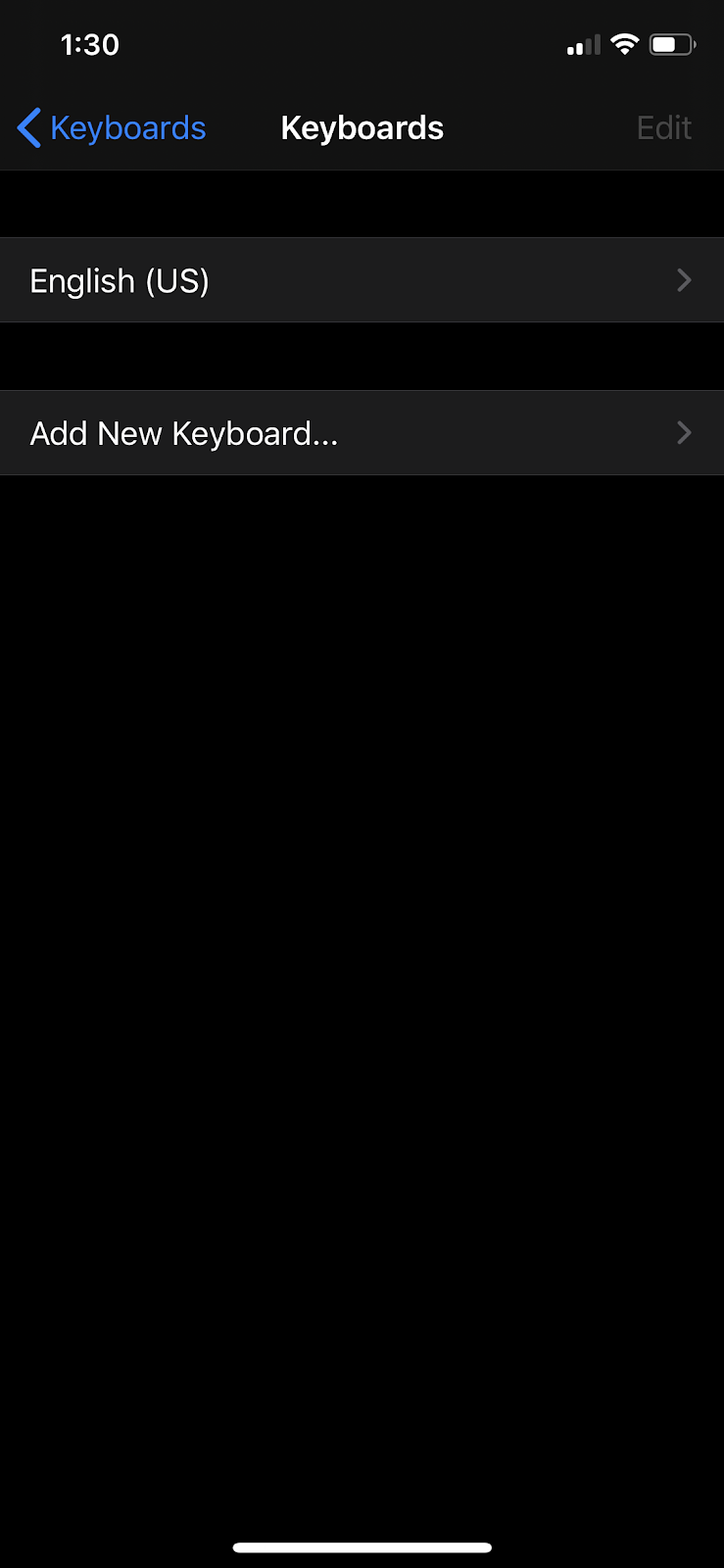
- Tap Keyboard, then tap Keyboards;
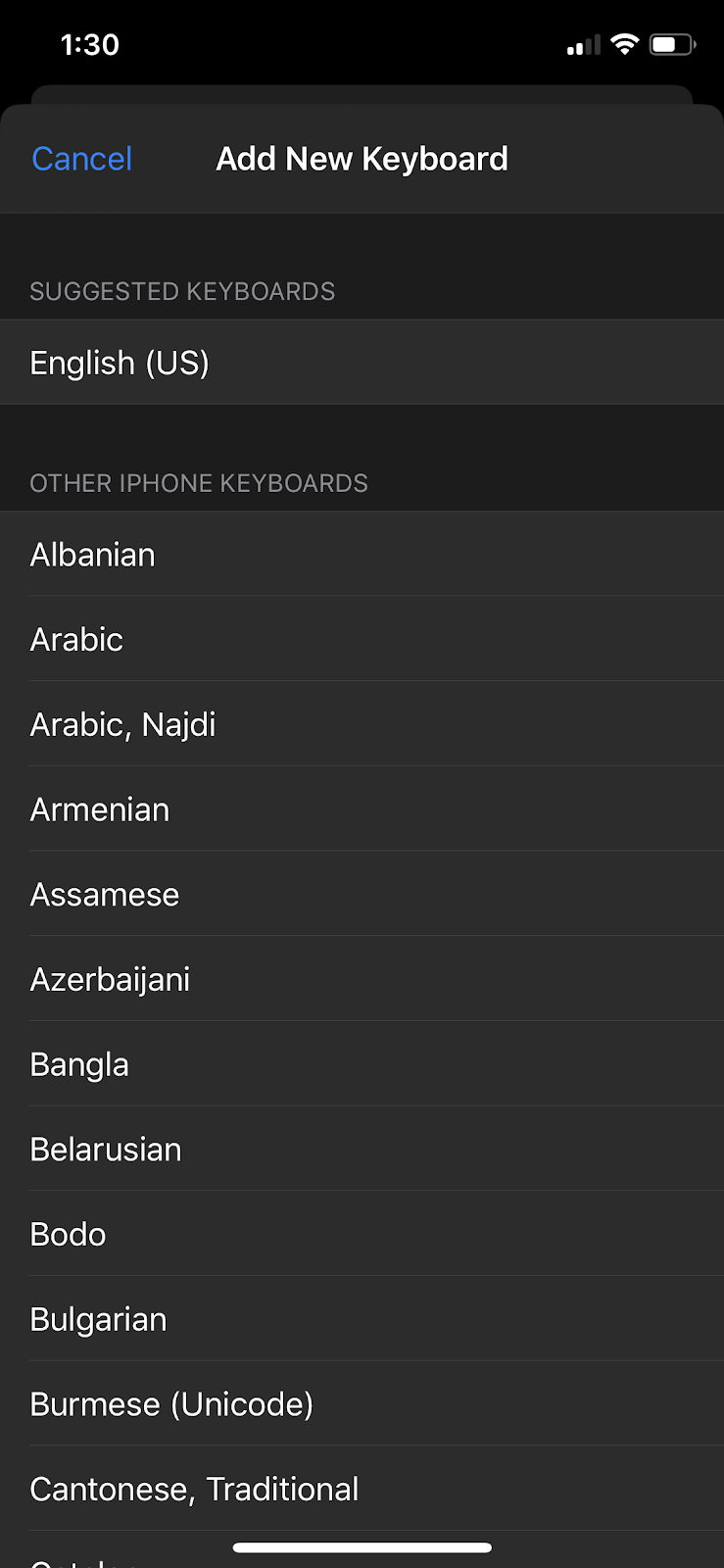
- Tap Add New Keyboard…;
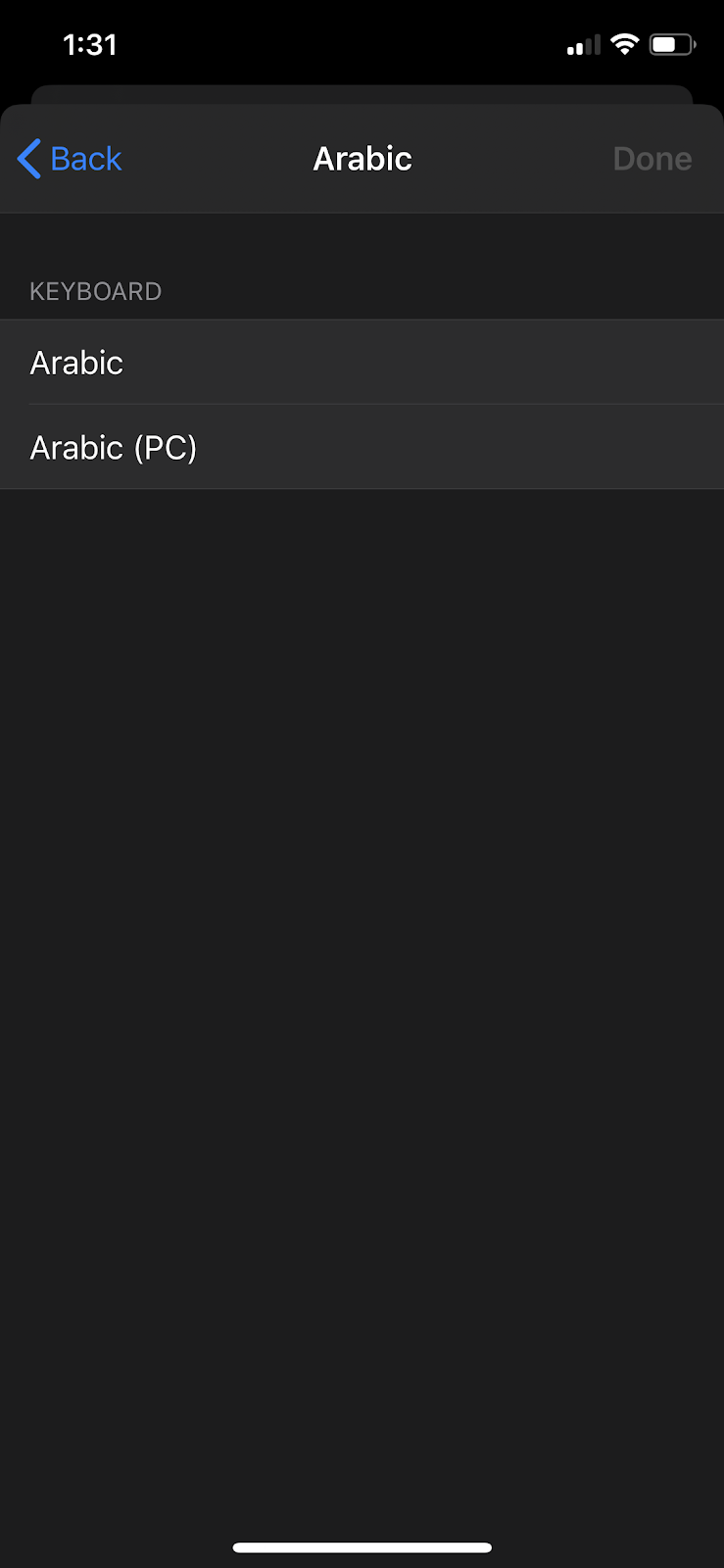
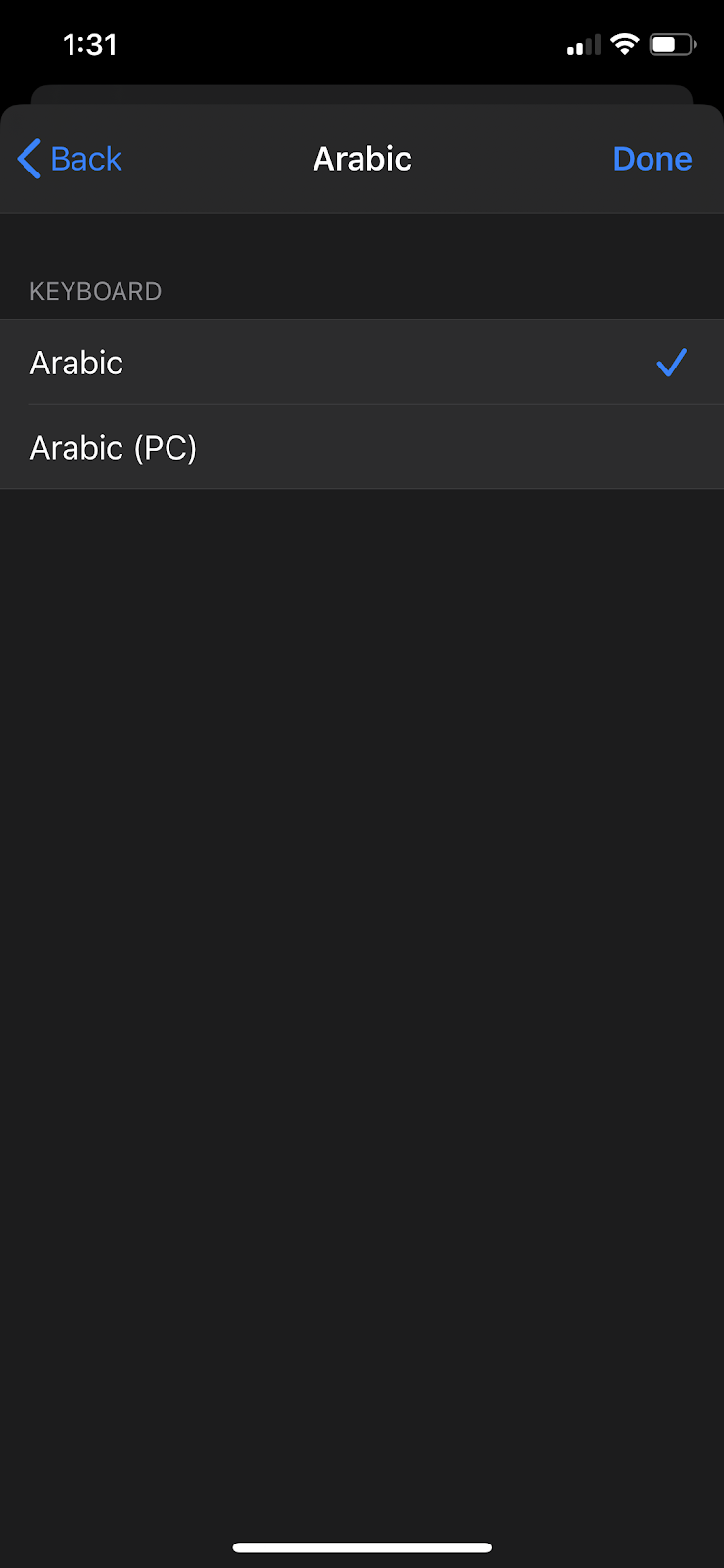
- Choose Arabic from the list, then select Arabic again, and finally tap Done.
 |
 |
 |
 |
 |
 |
2. Toggle between Arabic and English keyboards
After you activate the Arabic keyboard on your iOS phone or tablet, follow these simple steps to switch languages efficiently while typing.
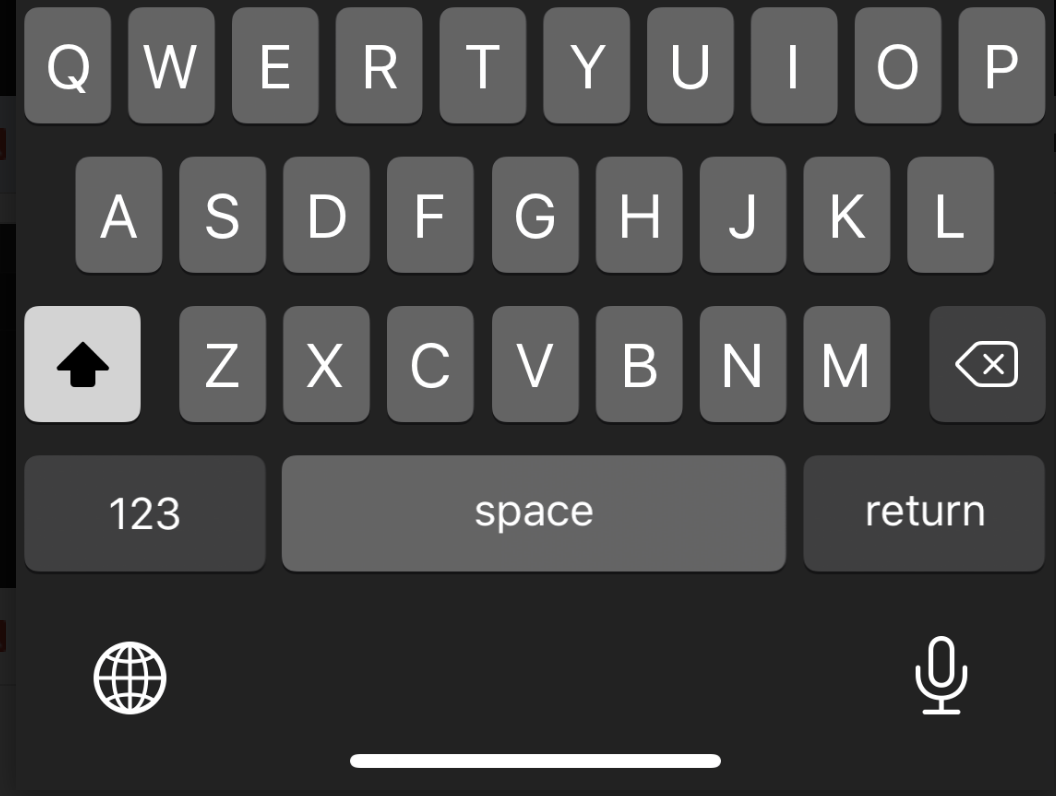
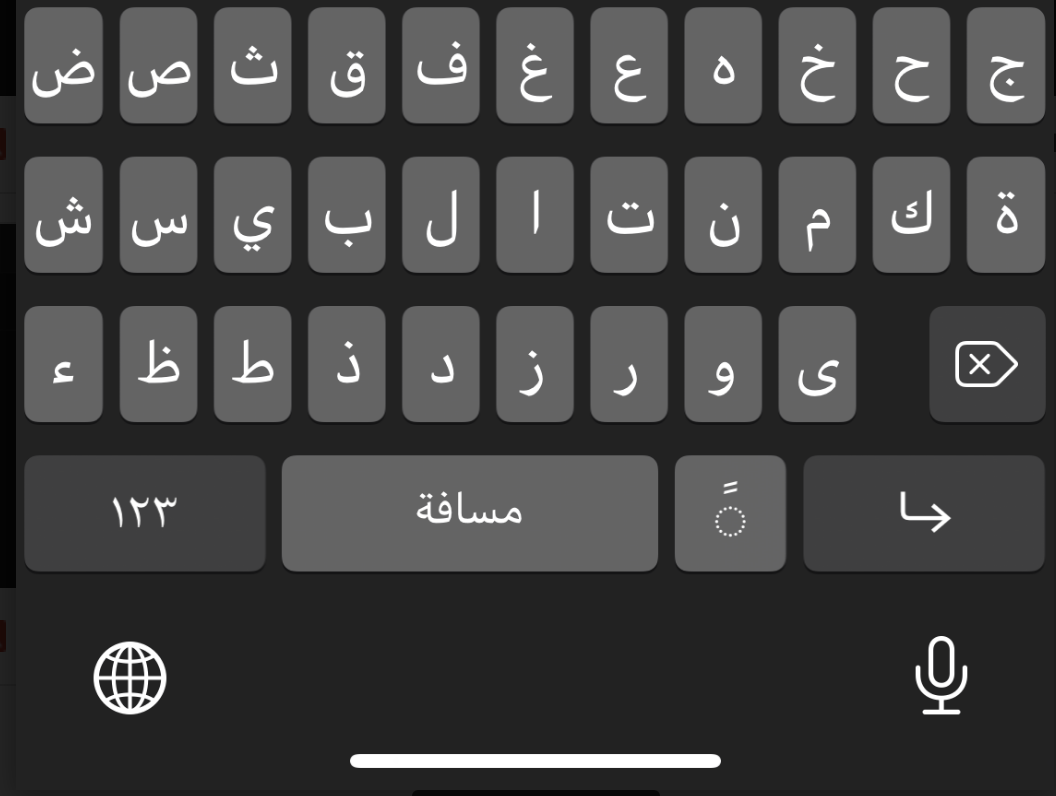
- Open your keyboard as if you are trying to type in English;
- Tap the globe icon on the bottom left corner, and your keyboard will switch to Arabic.
 |
 |
3. Add Arabic tashkeel to iPhone keyboard:
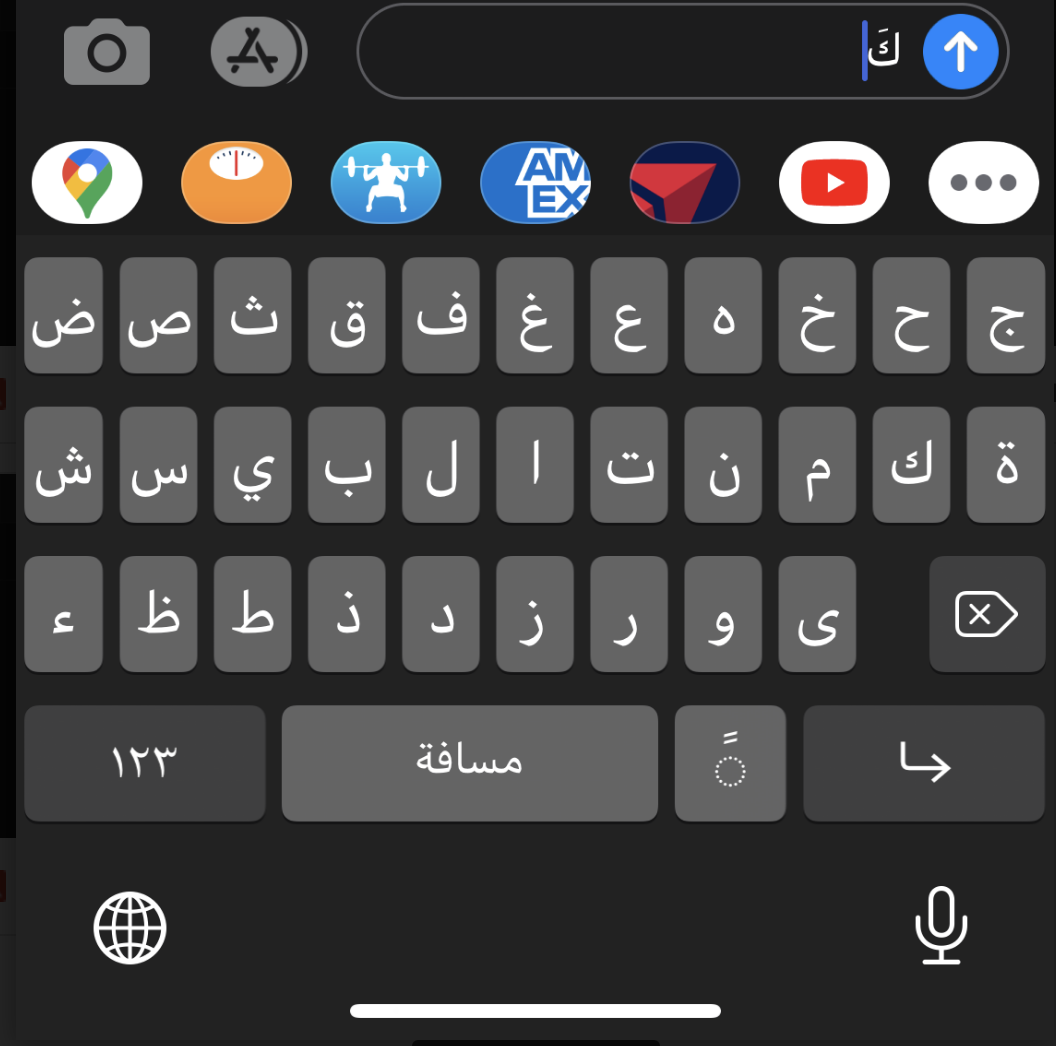
You often need to add tashkeel, the vocalization diacritics or simply short vowels, to the keyboard as you type. The challenge is they are not immediately visible on the iPhone keyboard. Just follow these steps to access them:
- Type the Arabic letter first;
- Hold down the tashkeel button located on the bottom between the Space and Return keys. A list of harakat/vowels will appear. Note that you will need to hold it down and slide your thumb to the vowel you want to add. Understanding these marks is crucial when you study the [[LINK:arabic-alphabet-guide]]Arabic alphabet guide[[/LINK]].
- The list will disappear when you lift your finger.
  |
 |
| (L-to-R) |
4. Locate the hamza on the iPhone / iPad Arabic keyboard:
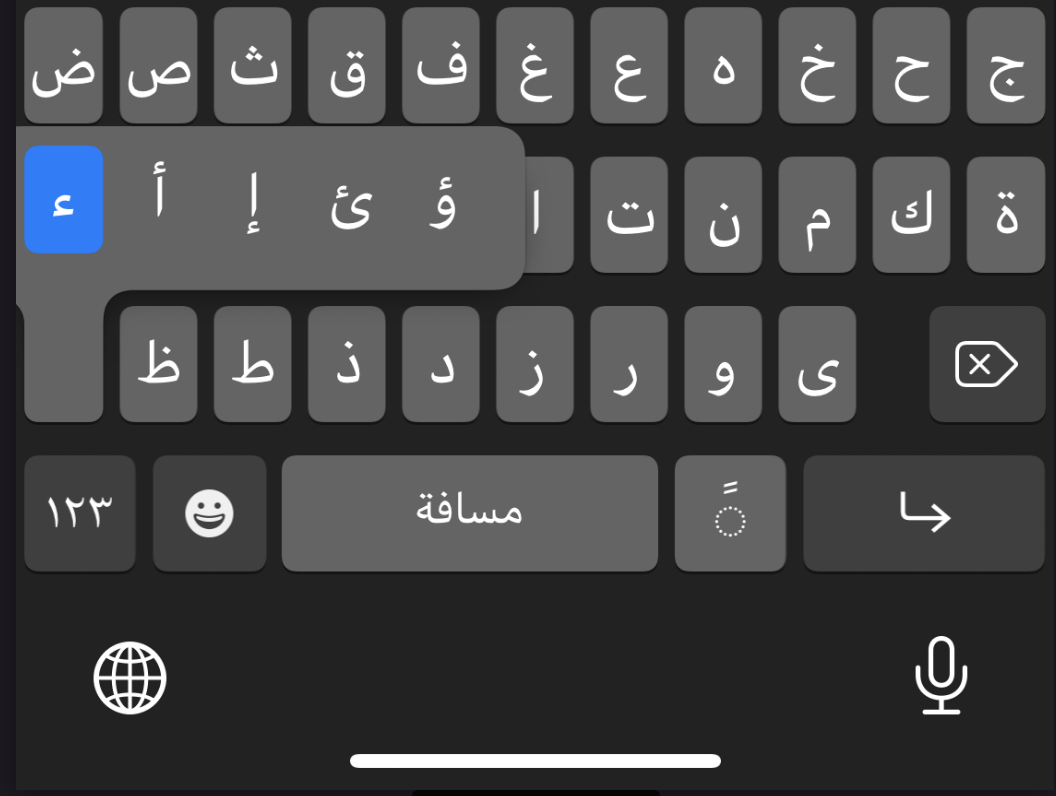
All the letters, including the hamza /ء/, can be located on the keyboard. The vocalizations of the hamza, however, need a bit of finger gymnastics. The hamza needs to be affixed to various letters depending on its vocalization.
If you are a total beginner, do not worry about the hamza positions at this stage. It will require its own post. However, if you are curious to know how you can find it on the iPhone/iPad keyboard, there are three ways to do it:
- The hamza on the line can be easily found on the keyboard. However, if we want to see all the possible shapes it can take, hold down the hamza key and you will see all your options. Just slide your finger to the shape of your choice. (see image)
 |
- When the Hamza needs to be vocalized by as /u/ it will need to sit on the /و/ and becomes /ؤ/ . In this case, you can hold down /و/ and pick it up by sliding your finger to it. There are other rules that govern the hamza, but that is a topic for another day.
 |
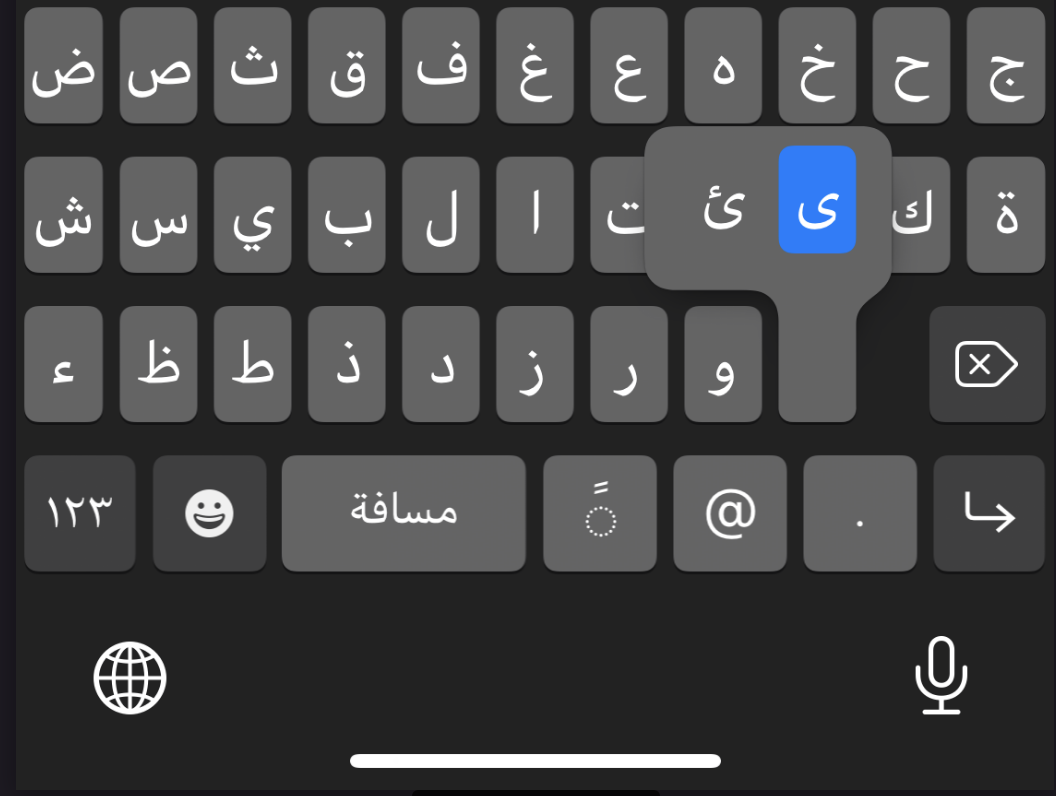
- In other instances, the hamza needs to sit on /ئ/. Hold down the key ى , and two options will appear. Slide your finger to pick /ئ/ .
 |
5. Activate the Arabic Keyboard on Mac devices:

It is equally easy to activate the Arabic keyboard on Mac devices. Please follow the steps below to configure your system preferences:
- Go to System Preferences;
- Click on the Keyboard icon;
- Click on Input Sources tab;
- Click on + sign on the bottom left corner of the Keyboard dialogue box;
- Select Arabic from the list of languages, and choose Arabic on the right side pane;
- Then, click the Add button.
- To toggle between English (or another language) and Arabic, just click on the flag or language name on the top right-hand corner to select the other language. For instance, in the illustration below, I need to click on the US flag (English) to switch the keyboard language to Arabic.

6. Add Arabic Keyboard Stickers:
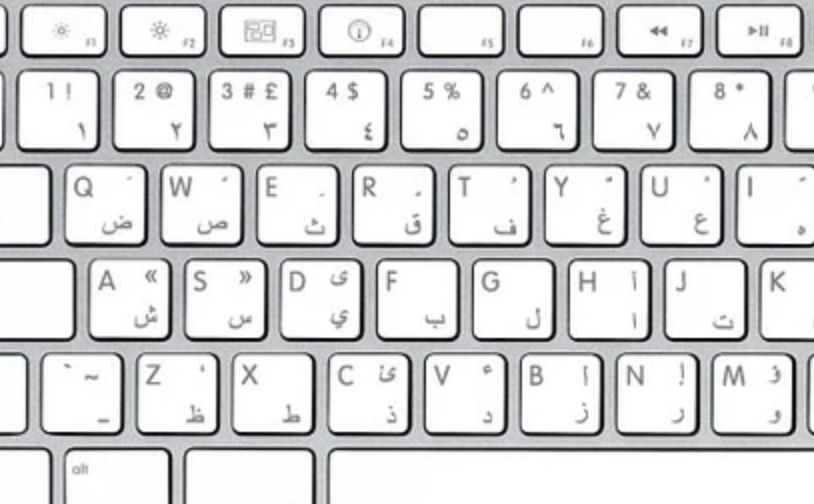
For users of Mac devices, you can purchase transparent Arabic keyboard stickers. They are printed in a way that doesn’t block the English letters on the key, allowing for dual-language typing.
Users of Microsoft Windows computers can purchase either keyboard stickers or a keyboard that has both Arabic and English letters. I have been using this keyboard for my Windows computer for years and I am very satisfied with it. For more hardware advice, check out our [[LINK:arabic-typing-tips]]Arabic typing tips[[/LINK]].
7. Benefits of activating Arabic keyboard or Arabic stickers:
- If you are an absolute learner, this will be a great help. You can use it to memorize the different shapes Arabic letters take depending on their position in the word (beginning, middle, or end).
- You can practice Arabic typing at an early stage. Believe me, it will be a great advantage when you pursue a career that requires Arabic.
- You can practice writing and improving your Arabic spelling and composition.
- You will quickly and easily type Arabic words to look them up online or on your files.
8. What if you don’t have Arabic keyboard stickers?
If you don’t have the Arabic keyboard stickers and you are not familiar with the placement of the Arabic characters on the keyboard, you can use the keyboard viewer tool to help you locate the Arabic letters on the keyboard. You’ll need to activate it on your device first before using it.
These are the steps to activate it on your Mac device:
- Click on the language icon/flag on the top menu bar;
- Then, select Open Keyboard Preferences from the drop-down menu;
- Select the Keyboard tab in the Keyboard window;
- Check the box for Show keyboard and emoji viewers in menu bar;
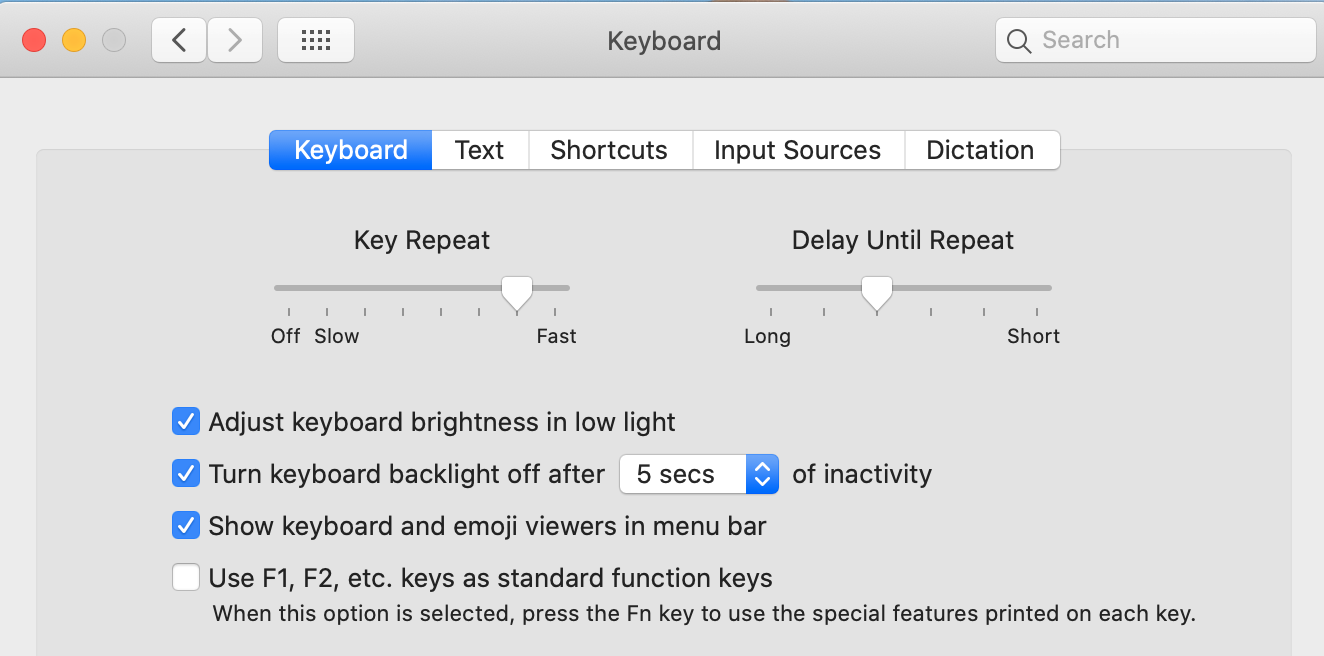
- Close the window.
Now that you have activated the keyboard viewer on your device, you can start using it. Just do the following every time you need to use it:
- Select Arabic on the menu bar;
- Click on the Arabic icon on the menu bar to get the drop-down menu;
- Then, click on Show Keyboard Viewer.
Now the Keyboard viewer will show on the top right side of your screen. Use it as a reference to locate the Arabic keys.

Happy Arabic typing!



Los comentarios están cerrados.